Google Sheets Wedding Guest List Template
Planning a wedding involves a thousand details, and your guest list sits at the heart of everything. It touches the venue capacity, catering choices, seating arrangements, and even the vibe of the day. Using a simple, flexible tool to track it all can save you from spreadsheet chaos and last‑minute panic. The Wedding Guest List Template for Google Sheets is exactly that: a clean, no‑fuss solution designed to help you manage invites, RSVPs, dietary needs, and more—all from within the free Google ecosystem.
What This Template Offers
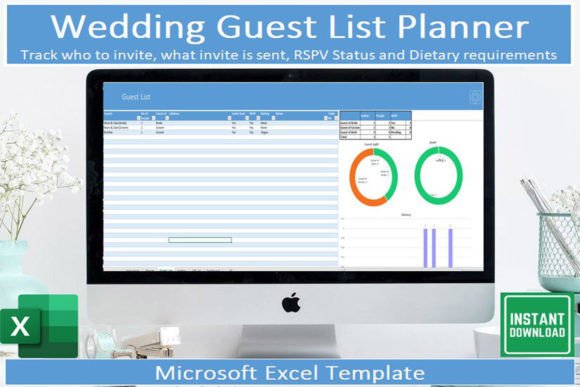
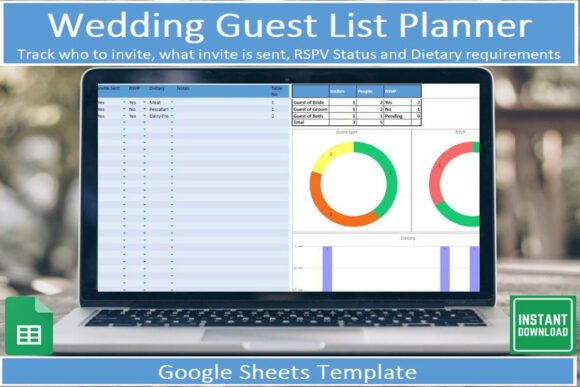
At its core, the template is a pre‑built Google Sheets file you can copy and personalise. It comes as a PDF containing a link and setup instructions. Once you click the link, you’ll make a copy to your own Google Drive. The template includes a dedicated instructions tab so you’re never guessing what each column does. The main guest list tab holds every piece of information you need: name, contact details, invitation status, RSVP response, dietary requirements, plus a notes column. As you update entries, the sheet automatically totals key metrics—like how many guests have RSVP’d yes, how many are still waiting, and which dietary restrictions are most common. There are also built‑in graphics (charts) that visualise your data at a glance, making it easy to see patterns without manual counting.
Because it lives in Google Sheets, you can access and update it on your phone using the free Google Sheets mobile app. This means you can check who’s RSVP’d while standing in a coffee shop, or adjust a plus‑one number while waiting for your flight. That mobility is a game‑changer when you’re coordinating with your partner, parents, or wedding planner on the go.
Why a Spreadsheet Template Works
Many couples start with a paper list or a messy notes app, but as the guest count grows, those methods quickly become unmanageable. A digital template gives you structure from the start. You don’t have to design column headers or worry about formulas; everything is set up and ready to fill. The automated totals remove the risk of miscounting, and the charts transform raw data into a visual snapshot of your progress. For example, you can see at a glance whether you’ve already invited 80% of your list, or that six guests have marked a gluten‑free requirement. That kind of clarity helps when you’re ordering invitations or confirming the wedding menu.
Creative Ways to Use the Template
Although the template is built for weddings, the same structure works beautifully for a variety of events. If you’re a freelancer hosting a launch party, a small business owner organising a client appreciation dinner, or a marketer planning a networking mixer, the core features—tracking invites, RSVPs, and special needs—are universally useful. You can adapt the column labels to fit your event type. For instance, replace “dietary requirements” with “session preference” for a conference, or “seating table” instead of “table assignment” for a charity gala. The automated totals and charts scale with whatever data you choose to track.
Educators and bloggers often run workshops or webinars with limited capacity. Using this template, you can monitor sign‑ups, follow‑ups, and attendee notes without paying for expensive event software. The simple check‑in feature (a column for “attended?”) can replace paper attendance sheets. Because the file is shareable, you can collaborate with a co‑host or assistant in real time—no more emailing updated versions back and forth.
Adaptations for Different Goals
- Bridal party coordination – Assign access to your maid of honour or best man so they can help update RSVPs as they come in.
- Kid‑friendly events – Add a column for ages or meal preferences to ensure the children’s menu is accurate.
- Destination weddings – Include travel info like flight arrivals, hotel room numbers, or transport needs.
- Post‑wedding thank‑yous – Use a notes column to track gift received, thank‑you sent, and any special message to include.
- Guest grouping for seating – Add a “group number” column to assign tables by acquaintance groups, then sort the sheet by that column.
The flexibility of the template means you can make it your own without breaking the underlying formulas. If you want to add a column for “song request” or “allergies beyond dietary,” simply insert a new column and label it. The automated totals and charts are designed for the core columns (invited, RSVP’d, dietary), but you can create additional summary formulas on the side if needed.
Keeping Your Data Clear and Organised
Consistency is key when dozens of names start piling up. Use drop‑down lists for invitation status (e.g., “Sent,” “Not Sent,” “Declined”) to avoid typos that break counts. In Google Sheets you can add data validation to a column, limiting options to a predefined set. This also makes it easier for anyone else using the sheet to enter data correctly. Colour‑coding rows or cells can offer another visual cue—for example, highlight “yes” RSVPs in green, “no” in red, and “pending” in yellow. This works well when you’re scanning the sheet quickly on your mobile device.
The built‑in graphs (pie charts or bar charts) automatically update as you add data. Keep the chart tab next to your guest list so you can monitor progress without scrolling. If you prefer a more minimal view, you can hide the chart tab and only bring it out during planning meetings.
Sharing and Collaboration Tips
One of the strongest features of a Google Sheets template is the ability to share. Send a view‑only link to your parents so they can see the final list without accidentally making edits. Give edit access to your partner or wedding planner so you can work simultaneously. Because Google Sheets tracks changes in the version history, you can always revert if something gets deleted. Use comments to ask questions about specific guests—like “Should Uncle Bob bring a plus‑one?”—and reply within the sheet rather than in separate text messages. This keeps all discussions in one place.
If you’re the kind of person who likes to test variations before committing, you can duplicate the whole template. For instance, create a copy called “Plan A – 100 guests” and another called “Plan B – 80 guests” to compare two scenarios. The template is lightweight, so you can have multiple versions without slowing down your Drive.
Making the Most of Mobile Access
The Google Sheets mobile app is free and works on both iOS and Android. Download it before you start, and the template will sync automatically. On mobile, the interface is slightly different—charts appear full‑screen when tapped, and editing cells works with a long press. But the core functionality remains: you can add a new guest, change an RSVP status, or check the total count while waiting in line. For quicker input, you can use voice typing on your phone’s keyboard to add names and notes. This is especially handy when you’re collecting details at an engagement party or meeting extended family in person.
Because the template uses simple formulas and conditional formatting, it remains responsive even on older phones. You don’t need to worry about complex macros or add‑ons that might slow things down.
Practical Recommendations for a Smooth Workflow
- Start early – Set up the template as soon as you have a rough guest list. Enter all names even if you haven’t finalised invites.
- Use consistent naming – Enter “Full Name” instead of nicknames to avoid confusion (but you can add a separate “Known as” column).
- Batch update invites – When you send a batch of invitations, update the “invite sent” column in one go using copy‑paste down the list.
- Track dietary requirements early – Add this column right away so guests can fill it when they RSVP, rather than calling everyone later.
- Archive data – After the wedding, you can keep the template as a memento or delete sensitive details. The PDF with the link remains in your email if you ever need to reuse it.
The template’s built‑in instructions tab explains each column and formula, making it easy to hand off to a family member who isn’t a spreadsheet expert. You can also print the sheet (or a PDF) for a paper backup if that feels reassuring.
Why This Approach Stands Out
Many wedding planning apps charge monthly fees or limit the number of guests. This template is free outside of a Google account, and you control your data entirely. There are no ads, no upsells, and no risk of losing your list if a subscription expires. If you’re comfortable with basic spreadsheet actions (copy, paste, sort, filter), you’ll feel at home immediately. And if you ever want to branch out, the same logic can be reused for other life events—baby showers, housewarming parties, milestone birthdays, or even small business customer lists.
The combination of automated totals and visual charts gives you peace of mind without relying on third‑party software. You can see your guest count changing in real time, which is invaluable when venues have strict capacity limits. The dietary requirements column also helps you create an inclusive menu, letting your caterer know exactly what to prepare without last‑minute surprises.
Getting Started Right Now
To start using the Wedding Guest List Template for Google Sheets, download the PDF from the product page. It contains a direct link and step‑by‑step instructions. Click the link, sign into your Google account, and choose “Make a copy” to save the template to your Drive. Rename it whatever you like—your wedding date or couple names. Open the instructions tab, read through the details, then head to the main guest list tab. Fill in your first few guests to see the totals and charts update instantly. That moment when the numbers start moving in real time is surprisingly satisfying.
You can share the sheet with your partner by clicking the “Share” button in the top‑right of Google Sheets. Add their email address with editor permissions. They’ll receive a link to access the same sheet, and any changes they make will appear immediately. It’s a simple form of collaboration that keeps everyone on the same page—literally.
The template is designed to be reused. After your wedding, you can make a clean copy for the next event. The formulas and structure remain intact, so you don’t need to rebuild anything. Over time, you may develop your own small tweaks—like adding a “thank‑you sent” checkbox or a column for “table number.” Each iteration makes the template more personalised to your planning style.
Whether you’re an organised bride‑to‑be, a groom managing logistics from a distance, a professional planner juggling multiple clients, or a creative freelancer who hosts events regularly, this template gives you a solid foundation. It strips away the complexity of building a spreadsheet from scratch, leaving you with a tool that’s both powerful and easy to understand. The automated tracking means you can focus on the fun parts of planning—the menu tasting, the playlist, the seating chart—without worrying whether you’ve accidentally double‑counted Aunt Linda.
Start with one guest, then add the rest. The template grows with you. And when the big day arrives, you’ll have a complete, accurate list that proves your planning paid off. That’s a quiet victory every host deserves.